Lesson 7 of 8
Build your first thing
Your workstation is ready. Now use it.
Your Mac is set up. Now build something.
Before you start: create a project folder
In Terminal:
mkdir ~/Projects/my-first-app
cd ~/Projects/my-first-app
Then open your CLI in that folder — pick whichever one you installed:
claude
…or:
codex
This creates a folder for your project and opens your AI agent inside it. Anything it builds will land here.
Plan before you build
| CLI | How to plan first |
|---|---|
| Claude Code | Press Shift + Tab to enter Plan Mode. Claude lays out the entire build before writing a single line of code. Read the plan, then type y to approve. |
| Codex CLI | Add "Make a plan first and wait for me to approve before writing any code." to the start of your prompt, or run /plan if your version supports it. |
Both approaches do the same thing: stop the agent from coding immediately so you can sanity-check the approach.
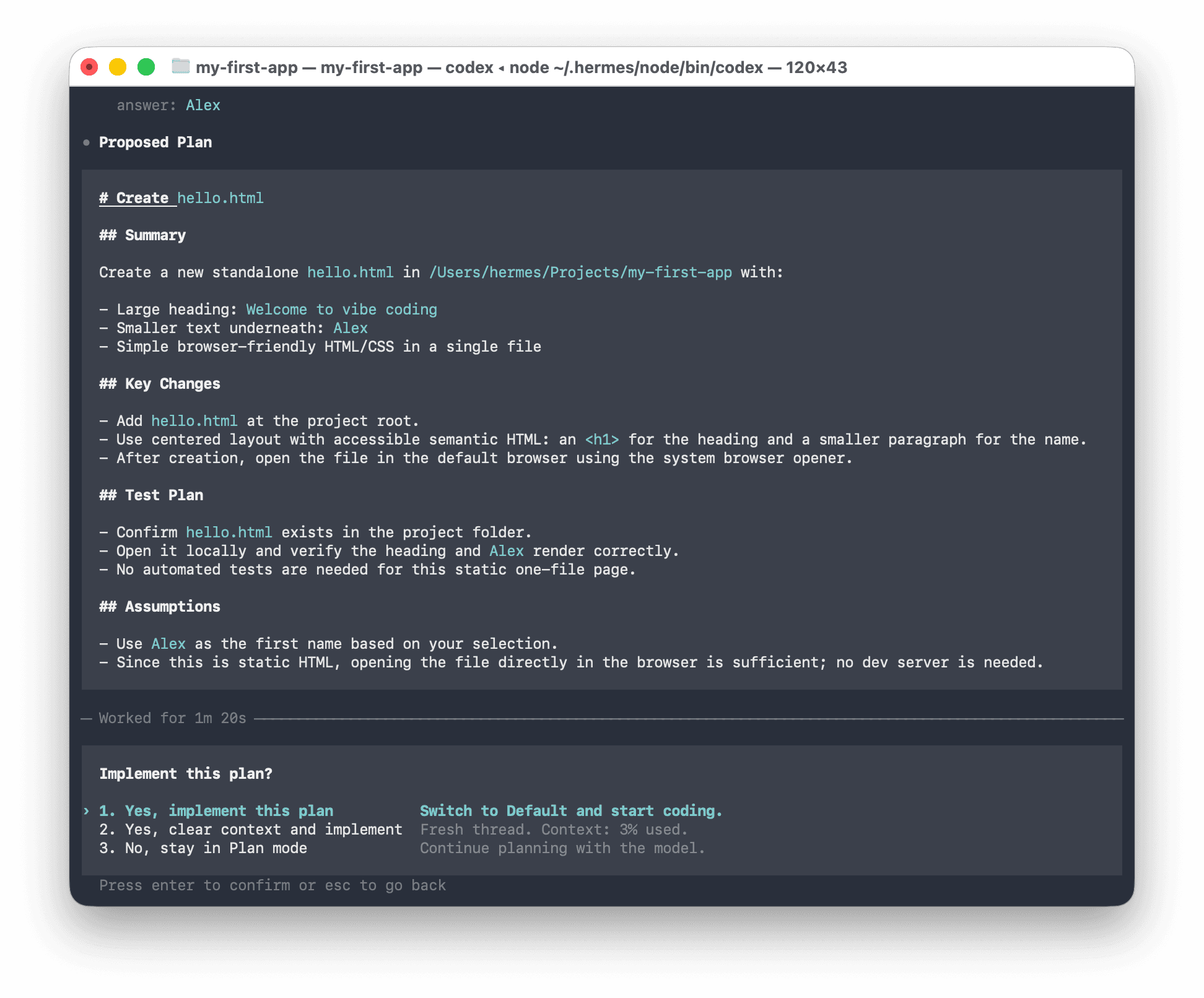
Warm-up: see the loop in 2 minutes
Before tackling a bigger project, try this quick exercise to feel how vibe coding actually works.
Create a single file called hello.html in this folder. It should say "Welcome to vibe coding" as a large heading, with my name underneath in smaller text. Ask me for my name first. When it's done, open it in my default browser.
The agent will ask your name, create the file, and open it in your browser — all from that one instruction. Now try asking it to change something:
"Make the heading blue and add a button that says 'Click me' — when clicked it should show an alert that says 'It works!'"
Watch it update the file and reload. That's the DESCRIBE → AI BUILDS → REVIEW → ITERATE loop in practice.
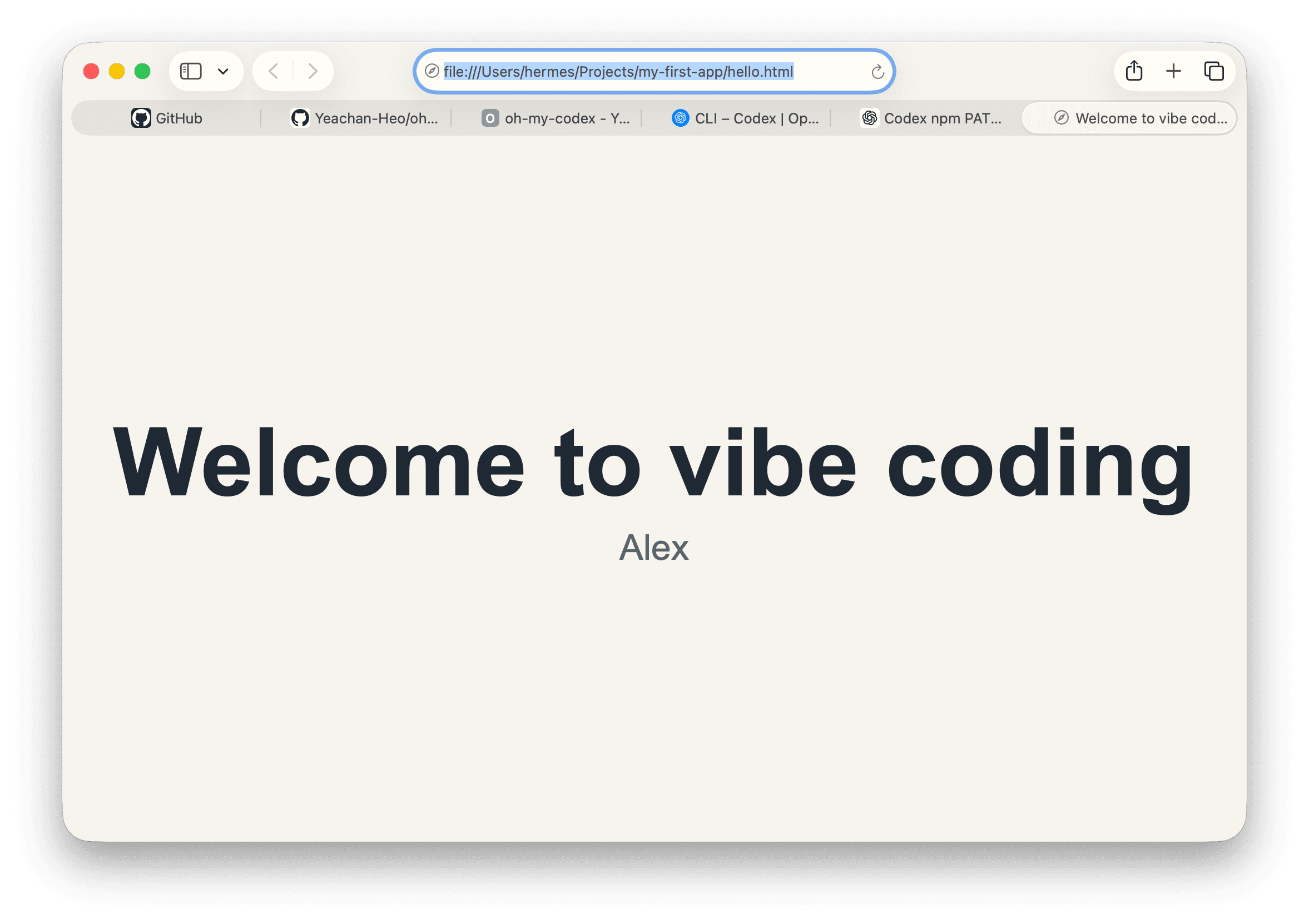
When you're ready, move on to a full project below.
Starter project 1: Personal notes app
A simple web app that saves notes. No accounts, no database. Works offline. Good for a first project.
I am a non-technical Mac user. Please explain every command in plain English before running it.
Build me a personal notes app as a web application. Requirements:
- I can write and save text notes
- Notes are saved automatically (no save button needed)
- Each note has a title and a body
- I can see a list of all my notes on the left, and the full note on the right
- I can delete notes I no longer need
- Everything saves in the browser (no database or accounts required)
- The design should be clean and professional — nothing flashy
Use React and store data in localStorage. When it's done, start a local development server and tell me how to view it in my browser.
Starter project 2: Expense tracker
A form-based app that lets you log and categorize expenses, with a running total.
I am a non-technical Mac user. Please explain every command in plain English before running it.
Build me a simple expense tracking web app. Requirements:
- I can add expenses with: date, description, category, and amount
- Categories should include: Food, Transport, Accommodation, Equipment, Other
- I can see a list of all expenses sorted by date (newest first)
- There's a summary at the top showing total spend and a breakdown by category
- I can delete individual expenses
- Everything saves in the browser (localStorage, no backend needed)
- Clean, professional design — looks like a business tool, not a toy
Use React. When it's done, start a local development server and tell me how to open it in my browser.
Starter project 3: Meeting notes formatter
Paste raw meeting notes, get a clean formatted summary with action items extracted.
I am a non-technical Mac user. Please explain every command in plain English before running it.
Build me a web app that formats messy meeting notes into clean summaries. Requirements:
- A large text box where I paste raw notes from a meeting
- A button that sends the notes to an AI model and returns a formatted summary
- The summary should include: Key Decisions, Action Items (with owner if mentioned), and a brief Summary section
- The formatted result appears below the input, neatly styled
- I can copy the formatted result to my clipboard with one click
For the AI call, use whichever provider matches the API key I give you — either Anthropic (Claude) or OpenAI. Ask me which provider I have an API key for, then ask me for the key, then store it in a .env file. Explain clearly how to get an API key if I don't have one.
Use React and a simple Express backend. When done, start the dev server and tell me how to use it.
Tips for your first build
Plan before you build. Whether that's Plan Mode (Claude Code) or a "plan first, wait for approval" instruction (Codex CLI), reviewing the plan catches mistakes before they're written into files.
Use the right model for each phase. Both CLIs let you switch models mid-session.
| CLI | Planning | Building |
|---|---|---|
| Claude Code | /model opus (most capable) | /model sonnet (faster, equally capable for code) |
| Codex CLI | /model gpt-5-codex or the deepest reasoning option available | a faster default like /model gpt-5-mini once the plan is approved |
If a model name in the table is unfamiliar, run /model on its own to see the current list.
Review the result in your browser. When the agent finishes, it will tell you the URL to open — usually something like http://localhost:3000 or http://localhost:5173. Open that URL and try using the app. If something doesn't work or looks wrong, just describe the problem to your CLI in plain English.
Save your work. Type this into your CLI to commit your progress:
Please checkpoint our work — stage all changes and write a descriptive commit message. If this project doesn't have a GitHub remote yet, create one for me using `gh repo create` (private by default, ask me before making it public), then push. If a remote already exists, just push.
The gh auth login you ran in Lesson 6 means this push works without any SSH key setup — gh handles credentials behind the scenes.