Lesson 5 of 8
Install Node.js and your AI CLI
Two commands and you're ready to talk to your AI agent.
With Homebrew in place, installing Node.js and your chosen coding CLI is straightforward. You'll run two commands.
1. Install Node.js (everyone does this)
Node.js is what runs JavaScript code on your computer. Both CLIs use it, and many of the apps you'll build will too.
brew install node
This takes 1–3 minutes. When you see the % prompt again, it's done.
node --version
Should print v20.x.x or higher.
2. Install your coding CLI
Pick one of the two options below — the one you decided on in Lesson 2. If you're undecided, pick Claude Code: its Plan Mode is the most beginner-friendly default.
Option A — Claude Code
npm install -g @anthropic-ai/claude-code
This downloads and installs the Claude Code command-line tool. It takes about a minute.
Verify it installed:
claude --version
Start it for the first time:
claude
This opens Claude Code and walks you through logging in with your Anthropic account. Follow the on-screen prompts — it will open your browser to complete authentication. If you have a Claude Pro or Max subscription, sign in with that. Otherwise, sign in to your Anthropic API account.
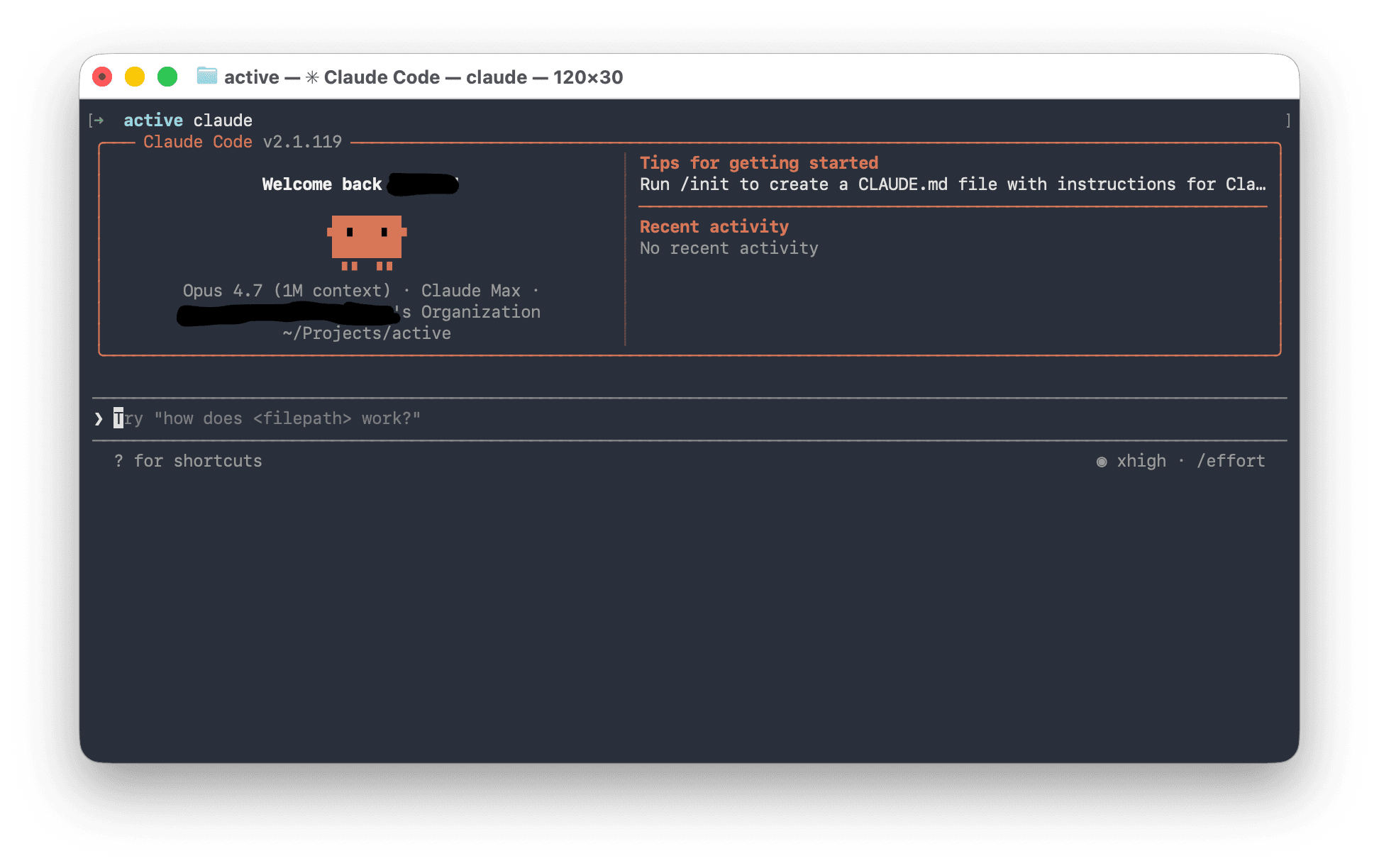
When you're done and back in Terminal, Claude Code is ready. Type /exit and press Enter to close it for now — the next lesson uses it to finish the rest of the setup.
Option B — Codex CLI
npm install -g @openai/codex
This downloads and installs the Codex command-line tool.
Verify it installed:
codex --version
Start it for the first time:
codex
This opens Codex CLI and walks you through logging in. The simplest path is Sign in with ChatGPT — your browser will open and prompt you to authorize. If you don't have ChatGPT Plus or higher, you can paste an OpenAI API key from platform.openai.com instead.
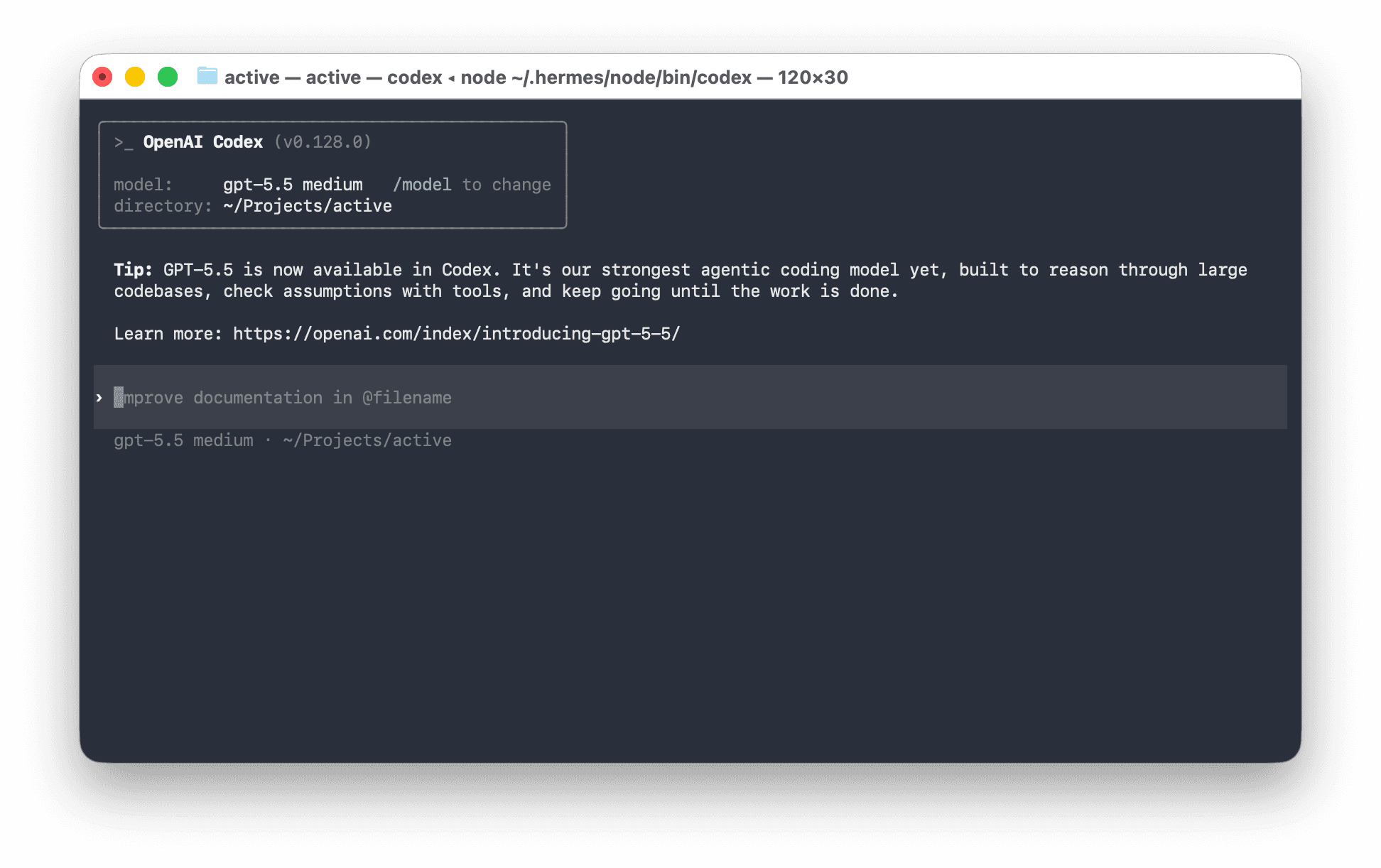
When you're done and back in Terminal, Codex CLI is ready. Type /quit and press Enter to close it for now — the next lesson uses it to finish the rest of the setup.
You'll know it worked when you saw your CLI's greeting in Terminal and a prompt waiting for your input. You're now talking to an AI that can read and write files on your Mac.
Want to try both? Nothing stops you. Run both npm install commands and you'll have claude and codex both available. The rest of this course uses generic instructions like "open your CLI" so it works either way.