Lesson 4 of 8
Install Homebrew
The package manager that makes everything else possible.
Homebrew is a tool that installs other software on your Mac. Think of it as an app store that Terminal can use. You install it once and never think about it again.
The install command
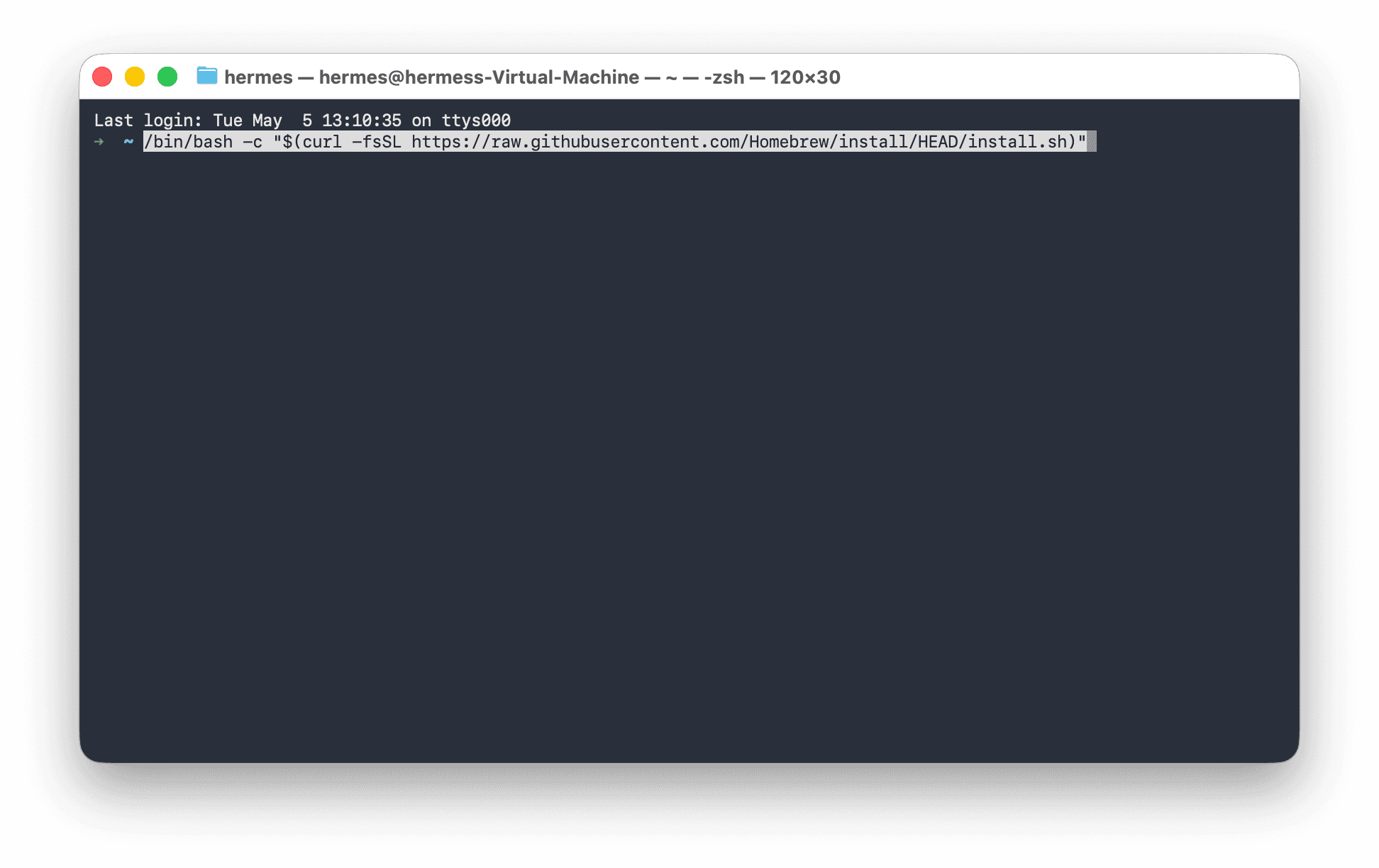
Copy and paste this entire line into Terminal, then press Enter:
/bin/bash -c "$(curl -fsSL https://raw.githubusercontent.com/Homebrew/install/HEAD/install.sh)"
Paste the whole thing at once. Select the line above, copy it (Cmd + C), click into Terminal, paste (Cmd + V), and press Enter. Don't try to type it by hand.
What to expect
It will ask for your Mac password. When you type it, nothing appears on screen — no dots, no asterisks. This is normal and expected security behavior. Type your password and press Enter.
A popup may appear asking you to install Xcode Command Line Tools. Click Install and wait for it to finish — this is a separate Apple download that Homebrew needs, and it can take 5–20 minutes depending on your internet connection. Once it finishes, Homebrew will continue automatically.
Screenshot placeholder
The macOS popup titled 'The xcode-select command requires the command line developer tools' with Install / Cancel / Get Xcode buttons.
You'll then see a lot of text scrolling by. This is normal. The whole process takes 5–20 minutes depending on your internet speed. Don't close Terminal.
After it finishes: the "Next steps" section
When the installer completes, it will show a section called "Next steps" with 2–3 commands to run. These commands tell your Mac where to find Homebrew. Copy and run each one.
Screenshot placeholder
Terminal showing the Homebrew installer's 'Next steps' section with two echo commands and one eval command, each prefixed by a hyphen.
For Apple Silicon Macs (M1/M2/M3/M4), those commands typically look like:
echo >> ~/.zprofile
echo 'eval "$(/opt/homebrew/bin/brew shellenv)"' >> ~/.zprofile
eval "$(/opt/homebrew/bin/brew shellenv)"
Copy exactly what the installer shows you — not the lines above. The installer tailors them to your specific Mac. On Intel Macs the path will be /usr/local/bin/brew instead of /opt/homebrew/bin/brew.
Verify it worked
Type this and press Enter:
brew --version
You'll know it worked when you see Homebrew 4.x.x (or a higher version number) printed in Terminal.
If you see command not found: brew, the "Next steps" commands above didn't run correctly. Go back and run them again, making sure to copy exactly what the installer showed you.